Cold Email Deliverability: Provider Rules and Diagnosis
By Shuk Huay Koh, Founder, Mir Tech
Published Updated 8 min read
On this page
When a cold email gets no reply, one of two things happened. Nobody saw it, or somebody saw it and did not care. Only the second is a copywriting problem. The first is a deliverability problem, and rewriting the subject line will not touch it.
This page is a lookup. It lists what the big mailbox providers require, gives a fixed order for finding the fault when placement drops, and sets out the numbers worth watching each week. For the setup itself (sending domains, DNS records and the ramp schedule), follow the email warmup system.
What the providers require
Google and Yahoo publish sender requirements that apply to anyone who mails their users, cold senders included. This is the one article on this site that explains them in full. The other cold-email pages link here.
| Provider | Who it covers | Authentication | Unsubscribe | Spam rate |
|---|---|---|---|---|
| Every sender to Gmail. Bulk rules start at close to 5,000 messages a day to personal Gmail accounts | Bulk senders: SPF, DKIM and DMARC. The DMARC policy can be none, and the From domain must align with the SPF or DKIM domain | One-click for marketing and subscribed mail | Keep below 0.30%. Google recommends below 0.10% | |
| Yahoo | Every sender, with stricter bulk rules | All senders: SPF or DKIM, with a DKIM key of at least 1024 bits. Bulk senders: both, plus a passing DMARC policy of at least p=none | One-click header for bulk senders, with unsubscribes honored within 2 days | Keep below 0.3% |
Two details in Google's sender FAQ catch cold senders out. Once you reach the bulk threshold, Google treats you as a bulk sender permanently. And every sender must meet the guidelines, so non-compliant mail can be rejected or sent to spam well below 5,000 a day.
Microsoft announced authentication requirements for high-volume senders to Outlook.com. Domains that send more than 5,000 messages a day must pass SPF, DKIM and DMARC, starting May 5, 2025. Microsoft said non-compliant mail would go to the Junk folder first, with rejection to follow later. Check the post for the current enforcement status.
For a small outbound team, the practical reading is short. Authenticate every domain as if you were a bulk sender. Keep complaints far under the limit instead of just beneath it. Put a clear opt-out in every message. A one-click header is the safest route if your tool supports it, and a plain-text opt-out line costs almost nothing. The email compliance automation guide shows how to build it.
Terms you will meet
| Term | What it means in practice |
|---|---|
| SPF | A DNS record listing the servers allowed to send mail for your domain |
| DKIM | A signature on each message, checked against a public key in your DNS |
| DMARC | A policy that says what receivers should do when SPF and DKIM fail to align with the From domain, and where to send reports |
| Alignment | The domain that passes SPF or DKIM matches the domain in the visible From address |
| Deferral | A temporary refusal. The sender is told to retry later |
| Hard bounce | A permanent failure, such as an address that does not exist |
| Complaint | A recipient marking your message as spam |
Reputation attaches to your sending domain and, where you control them, your sending IP addresses. If you send through Google Workspace or Microsoft 365 mailboxes, the IPs belong to the provider, so your domain's behavior is the part you can change. That is one reason a bad habit on one domain follows you.
Diagnose in a fixed order
When placement drops, the instinct is to rewrite the copy. Resist it. Work down the layers below and stop at the first fault, because each layer can hide the ones after it.
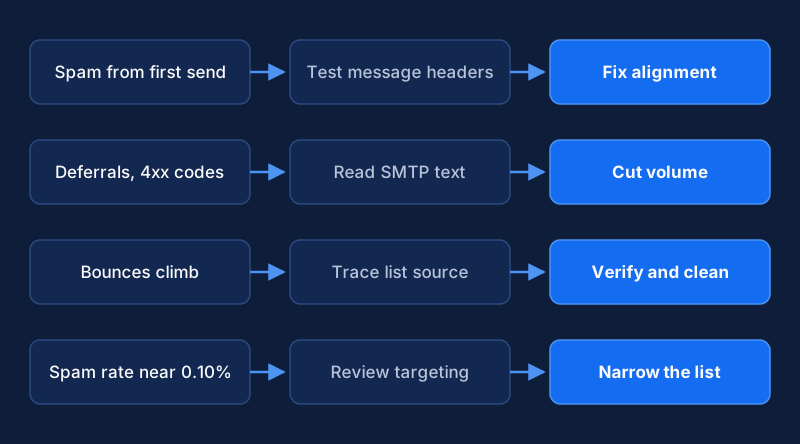
| Order | Layer | What to check | Typical fix |
|---|---|---|---|
| 1 | Authentication | Headers on a test message to Gmail: SPF, DKIM and DMARC all pass and align with your domain | Repair the DNS record, or make your sending tool sign with your domain |
| 2 | Blocks and deferrals | SMTP responses in your sending tool | Cut volume for that provider, fix the stated cause, resume in small steps |
| 3 | List quality | Bounce rate, traced back to the import or enrichment source | Verify addresses and remove the bad source |
| 4 | Volume and pattern | A new inbox, a restart after a pause, or one big campaign | Return to the last volume that worked |
| 5 | Complaints | Spam rate in Postmaster Tools, negative replies | Narrow the targeting and make the opt-out easier to find |
| 6 | Content | Plain text, few links, a subject that matches the body | Shorten and simplify. Only now touch the copy |
If mail reaches the inbox and nobody answers, deliverability is fine. The problem is who you email or what you say.
Read the authentication headers
In Gmail, open a test message and choose Show original. The result looks like this, with your own domain in place of the example:
Authentication-Results: mx.google.com;
  dkim=pass header.i=@send.example.com;
  spf=pass smtp.mailfrom=send.example.com;
  dmarc=pass header.from=send.example.com
All three should say pass, and the domain in each line should be your sending domain. A sudden drop often comes from a new tool that signs with its own domain. Then you see dkim=pass for the vendor's domain and dmarc=fail, because the passing domain does not align with your From address. A DNS edit that created a second SPF record produces a similar failure.
Read the SMTP responses
Replies that start with 4 are temporary, so the provider is asking you to try later. Replies that start with 5 are permanent refusals. Gmail's SMTP error reference explains two codes that cold senders meet often.
| Response | What Gmail says | What to do |
|---|---|---|
421 4.7.28 | Gmail has detected an unusual rate of email and has temporarily rate limited it | Cut volume, wait, and look for what changed |
550 5.7.26 | The email was blocked because the sender is unauthenticated | Fix SPF or DKIM before you retry |
Deferrals are a warning, not a failure. A tool that keeps retrying through them at full speed turns a warning into a block.
When you need to escalate to your sending tool's support or a provider's postmaster team, collect four things first: the time of the failed send, the recipient's domain, the exact SMTP response text and the full headers of a test message. A report that includes them gets a useful answer. A report that says "our emails go to spam" does not.
Symptoms that point to one layer
| Symptom | Likely layer | First check |
|---|---|---|
| Spam folder from the first send | Authentication, or a new domain with no history | Test headers |
| Replies fall off suddenly at one provider | Placement | Test inboxes at each provider. Look for a DNS change or a blocklist entry |
| Bounces climb | List data | Find where the new records came from |
| Deferrals from one provider | Volume or reputation | Lower volume for that provider and read the SMTP text |
| Spam rate heading for 0.10% | Targeting or message | Cut the list to people who match the offer, and stop writing to non-responders |
What to check each week
Problems show up in the numbers before they show up in the pipeline. Track per inbox and per domain. A campaign average hides one bad inbox.
| Signal | Where to look | Why it matters |
|---|---|---|
| Spam rate | Google Postmaster Tools | Google asks for below 0.30% and recommends below 0.10% |
| Bounce rate | Your sending tool | Invalid addresses hurt reputation fast |
| Authentication results | DMARC aggregate reports | They list every source that sends as your domain, including ones you forgot |
| Placement | Test messages to your own accounts at each provider | Open rates mislead |
| Blocklist status | Blocklist lookup tools | An early listing is easier to clear |
| Replies and opt-outs | Your inbox and CRM | Angry replies are a reputation signal |
Postmaster Tools reports on Gmail recipients only, and a small domain may show little or nothing, so keep your own per-inbox log as well. DMARC aggregate reports arrive as XML. A free report reader, or your DMARC host, turns them into a table. An unknown sender in that table is usually a tool someone connected without telling you.
Our advice on thresholds is to write the pause rule down before you need it. Pause any inbox whose bounces or complaints are rising, then investigate. A pause costs a few days. A damaged domain costs weeks, and nobody argues well with a deteriorating domain in the middle of an incident.
Retire a domain before you nurse it
Sometimes retiring a domain is faster than repairing it. We lean toward retiring earlier than feels comfortable, because a domain's history follows it and a fresh one costs little. The condition is that you fix the cause first. Usually it is one of three things: a list nobody verified, a message that attracted complaints, or a sending tool that ran faster than anyone intended.
Do not move the same list to a new domain and expect a different result. The list carries the problem with it. Verify and clean it with the list hygiene system, then start the new domain at the bottom of the ramp, not where the old one ended.
What content can and cannot fix
Authentication gets you through the door. Recipient behavior decides the rest, and relevance lowers complaints more than any copy trick does. Plain text, few links, an honest subject line and a visible way to opt out remove most content risk. After that, extra polish buys little.
The message needs one specific reason to exist. For how to build that line at scale, see cold email personalization at scale.
Deliverability is maintenance. The cheapest habit is a weekly ten-minute look at spam rate, bounces and authentication results for each inbox, with a written rule for when to pause.
Frequently asked questions
Can I send cold email from my main company domain?
We advise against it. A reputation problem on your main domain reaches invoices, support replies and internal mail, and those are the messages you can least afford to lose. A separate, clearly branded sending domain contains the damage. It still needs full authentication and its own ramp, because a new domain with bad habits earns a bad reputation quickly.
Does a low open rate mean my mail is going to spam?
Not by itself. Mail privacy features can load messages automatically, so open data is unreliable in both directions. Send test messages to your own accounts at each major provider, look at where they land, and read your replies. A sudden drop in replies from a segment that used to answer is a stronger placement signal than any open rate.
How long does a damaged domain take to recover?
There is no published figure from Google, Yahoo or Microsoft, so any number you read is a guess. Pause sending, fix the cause, restart at the bottom of the ramp schedule and watch your own bounce and complaint numbers. If they stay low as volume rises, the domain is recovering. If they do not, retire it and fix the list before you start another.
Related Content
Email List Hygiene: Verification, Bounces and Suppression
Build a suppression list that handles bounces, complaints and unengaged contacts automatically, so your sending reputation stays healthy.
Warm Up a New Sending Domain and Monitor Reputation
How to authenticate, ramp up and monitor new sending domains and inboxes so outbound email reaches the inbox. For founder-led B2B teams.
Build Event-Triggered Emails and Alerts from User Behavior
Turn product and website events into timely emails and sales alerts. A tool-agnostic note on events, identity, trigger rules and guardrails.