Warm Up a New Sending Domain and Monitor Reputation
By Shuk Huay Koh, Founder, Mir Tech
Published Updated 7 min read
On this page
Google's advice to a new sender fits in one line: "start with a low sending volume to engaged users, and slowly increase the volume over time". Everything below is a way to follow it without guessing.
A new domain has no sending history, so mailbox providers judge its first messages harshly. If they arrive in a burst, bounce or get reported, the domain starts with a bad record. Warmup means building a history on purpose: small volumes to people who want the mail, raised in steps, while you watch what the providers show you.
This guide owns the setup: sending domains, DNS records and the ramp. For what Google, Yahoo and Microsoft require, and how to diagnose a problem once mail is flowing, read the cold email deliverability guide. Warmup will not rescue a weak list or a weak message. Fix the list first with the list hygiene system.
What providers say about volume
Google's email sender guidelines are the clearest primary source. They warn against "sudden volume spikes if you do not have a history of sending large volumes". On bounces they say: "If messages start bouncing or start being deferred, reduce the sending volume until the SMTP error rate decreases." They also say to automatically unsubscribe recipients who have multiple bounced messages.
Neither Google nor Yahoo publishes a day-by-day schedule. Any schedule you read in an article, including the one below, is a convention. Let your own signals set the pace.
Step 1: Choose and register the sending domains
Use separate domains for cold or outbound email, and keep it off the domain that carries invoices, product mail and team email. A reputation problem on a sending domain then stays contained.
Pick a name that looks like you, such as a close variation of your brand. Avoid names that imitate another company. Point the domain at your real website, so a recipient who checks it finds a real business.
Keep the footprint small. A few mailboxes per domain, each named after a person who will answer replies, is easier to run and monitor than a large pool. Add domains later, once the first ones are healthy.
Volume counts at the domain level. Google adds up messages from the same primary domain when it decides whether you are a bulk sender, so more mailboxes on one domain do not buy more room.
Step 2: Authenticate each domain
Do this before any mail leaves. Configure SPF, DKIM and DMARC for every sending domain, whatever your volume. The deliverability guide lists which provider requires what.
SPF
SPF lists the servers allowed to send mail for your domain. It is one TXT record. For a Google Workspace domain it typically looks like this:
Type:  TXT
Host:  @
Value: v=spf1 include:_spf.google.com ~all
Two rules come from RFC 7208. A domain must not publish more than one SPF record, because multiple records produce a permerror. And SPF evaluation is limited to 10 DNS-querying terms such as include, a and mx, so going over the limit also returns permerror. When you add a sending tool, merge its include into the existing record. Never create a second one.
DKIM
DKIM signs each message with a key. Your mail provider generates the key pair and gives you a DNS record to publish. Then you switch signing on in the provider's admin console. Yahoo's sender best practices set a minimum key length of 1024 bits. Use 2048 where your provider and DNS host support it, and rotate keys on a schedule you can keep.
The classic mistake is to publish the record and forget to enable signing, so messages go out unsigned.
DMARC
DMARC tells receivers what to do when SPF and DKIM fail to align with the From domain, and where to send reports. Start in monitoring mode:
Type:  TXT
Host:  _dmarc
Value: v=DMARC1; p=none; rua=mailto:dmarc-reports@yourdomain.com
Read the aggregate reports for a few weeks. They show which services send mail as your domain. When every legitimate source passes, consider p=quarantine. Hold off on p=reject until you are sure about every sender, because a misconfigured tool will then bounce real mail.
Test before the ramp
Send a test message to a Gmail address and view the original headers. SPF, DKIM and DMARC should all pass. Query the DNS records with a lookup tool and confirm there is exactly one SPF record. Re-test after every change to your sending tools. Also check the basics Google lists: a valid Message-ID on every message, a single address in the From header, and the same From address for messages of the same category.
Step 3: Set the ramp schedule
Write the schedule down for each mailbox. A written cap stops someone raising the limit in the sending tool because a campaign feels urgent.
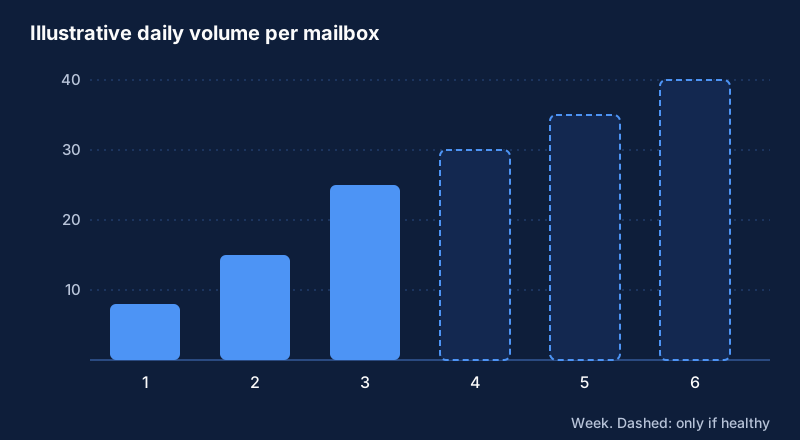
| Week | Daily volume per mailbox | Who receives it |
|---|---|---|
| 1 | Under 10 | Colleagues, partners, opted-in contacts |
| 2 | 10 to 20 | The same group, plus your most engaged contacts |
| 3 | 20 to 30 | A first small outbound batch to verified, well-targeted prospects |
| 4 onward | Raise in small steps | Only while all signals stay healthy |
These figures are a cautious starting point, not a provider rule. Many mailboxes at a modest volume each are safer than one mailbox at a high volume. If a step goes badly, go back to the last volume that worked and hold there. Spread sends across the working day, because a burst at the top of the hour looks like a script.
Step 4: Send warmup mail to real, engaged recipients
The best warmup mail is mail people want. Ask colleagues, partners, advisors and friendly customers to read and reply. A real thread with a real reply is a strong positive signal, and it costs nothing.
You will see tools that sell automated warmup, where a network of mailboxes opens and replies to each other's messages. We cannot verify that they work, and mailbox providers do not endorse them. Artificial engagement patterns are exactly what providers try to detect. We would skip them. If you use one anyway, treat it as a supplement to real mail and judge it by your Postmaster data and reply rates.
Whatever you send, keep it honest: accurate From and Reply-To details, a subject that matches the content, and a working unsubscribe path for marketing mail, as the compliance automation guide explains.
Step 5: Monitor reputation signals
You cannot see a provider's internal score. You can see what it shows you and what your own logs record.
Register every sending domain in Google Postmaster Tools. Google's dashboards page lists views for compliance status, spam rate (the percent of messages recipients mark as spam in Gmail), domain and IP reputation, delivery errors, and a feedback loop for senders that set feedback loop IDs. Postmaster data covers Gmail recipients only, so a low-volume domain may show little. Google has reworked these dashboards more than once, so check the live interface rather than a screenshot in an old article.
Keep your own log per mailbox per day: sent, delivered, bounced, replied and unsubscribed, plus the domain and the date the mailbox started. Trends matter more than any single day.
Two manual checks help. Send a message from each mailbox to test accounts at different providers and see where it lands. And run the domain through a public blocklist lookup when something looks wrong. A listing on an obscure list rarely matters. A listing on a major one does. Test placement by hand, because tools that report a placement percentage use their own seed accounts, and the result may not match how a real recipient's inbox treats you.
Step 6: Define throttle and pause rules
Decide the thresholds in advance, so nobody argues about them while a domain is deteriorating. Use these as a template and adjust them to your baseline:
IF  bounces rise above your normal baseline for two days   -> hold volume, check list quality
IF  messages are deferred or rejected by a provider        -> cut volume, check authentication
IF  Postmaster spam rate approaches 0.10%                  -> pause outbound on that domain
IF  a domain is listed on a major blocklist                -> pause, find the cause, request delisting
IF  authentication fails on any test message               -> pause until fixed
Pausing is cheap. A domain that sends nothing for a week usually recovers faster than one that keeps sending into a problem. When you restart, drop back to week one or two volume and ramp again.
Fix the cause before you resume. The usual suspects are a bad list, a message that attracts complaints, a sending tool set to send too fast, or a broken DNS record.
After week four
Warmup does not end on a date. Keep volume per mailbox steady and add capacity by adding mailboxes, not by pushing the existing ones. Keep monitoring daily, and review DMARC reports weekly while the policy is p=none.
The setting to check every week is the cap from Step 3. It is the one people change when a campaign feels urgent.
Implementation steps
- Choose and register the sending domainsRegister separate domains for outbound email so a reputation problem never touches your primary domain. Create a small number of mailboxes per domain, named after real people.
- Authenticate each domainPublish one SPF record and a DKIM key, add a DMARC record starting at p=none, and confirm every test message passes authentication before any warmup begins.
- Set the ramp scheduleStart with a low daily volume to engaged contacts and raise it in small steps. Write the schedule down per mailbox, with a hard daily cap.
- Send warmup mail to real, engaged recipientsUse colleagues, partners and opted-in contacts who will actually read and reply. Treat automated warmup networks as optional and unproven.
- Monitor reputation signalsRegister each domain in Google Postmaster Tools, review spam rate and authentication daily, and log bounces and replies per mailbox.
- Define throttle and pause rulesWrite down the thresholds at which sending slows or stops, and the steps to recover. Do not raise volume again until the signals are stable.
Related Content
Email List Hygiene: Verification, Bounces and Suppression
Build a suppression list that handles bounces, complaints and unengaged contacts automatically, so your sending reputation stays healthy.
Cold Email Deliverability: Provider Rules and Diagnosis
What Google, Yahoo and Microsoft require from cold senders, how to diagnose spam-folder placement layer by layer, and which signals to check weekly.
Build Event-Triggered Emails and Alerts from User Behavior
Turn product and website events into timely emails and sales alerts. A tool-agnostic note on events, identity, trigger rules and guardrails.